Epson 3880 & Friends – First Impression

It’s been a couple of weeks since I’ve checked in.  Blame it on the new (to me) Epson 3880.  The Epson Stylus Pro 3880 is a (relatively) compact printer that replaces the well-liked 3800 model, with features including the Epson UltraChrome K3 8-color inkset, with the new Vivid Magenta ink; a new MicroPiezo Advanced Meniscus Control printing head; and the AccuPhoto HD2 droplet placement technology.  I have a bunch of detailed remarks of course, but after one week of pretty heavy use, I can state simply and without hesitation that this printer is the real deal.  Although the 3880 is the entry-level printer in the Epson Pro line, the performance is a clear notch above offerings in Epson’s consumer inkjet line.  Not to take anything away from Epson’s excellent consumer printers, it’s just that the 3880 is, to be clear, a lot better.
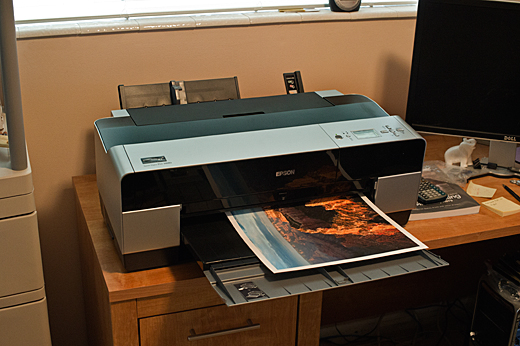
The 3880 is shown above, midway through a 13″ x 19″ print (okay, right, it’s a 12″ x 18″ print on a 13″ x 19″ sheet – that’s the way I print ’em!).  The manual rear feed adapter is set up here since the substrate is Epson Velvet Fine Art paper – it’s 19 mil!

The system sets up very easily.  Honestly, the most challenging part of the setup is the removal of several dozen pieces of tape and small bits that are used to secure the system during shipping.  The first print out of the 3880; on Epson Ultra Premium Luster Photo Paper, looks fantastic!  This was a tough image too – Wotan’s Throne shot from from Cape Royal on the north rim of the Grand Canyon at dawn – and while on lesser printers the shadows plug and the highlights are dim, on the 3880 the rendering is just magic.

So whom are the ‘& Friends’ mentioned in the title?  Since a printer can only be as good as the paper it’s printing on, aka its friends, I’ll also report on a wide range of substrates.

Copyright 2010 Peter F. Flynn. No usage permitted without prior written consent. All rights reserved.
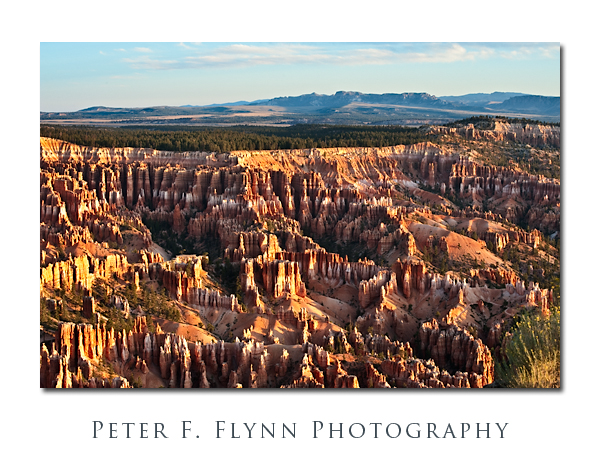
A Labyrinth of Stone

You will immediately recognize that the image above was shot at or near Bryce Canyon National Park, since there isn’t anything like these particular Hoodoo and fin formations anywhere else on the planet (okay, at Cedar Breaks National Monument as well, but that is part of the same geological structure).  Bryce Canyon is actually more a cliff than a canyon, and it forms the upper tread in the series of steps that forms the Grand Staircase, leading down through the Pink and Grey Cliffs, through the White Cliffs and Zion NP, across the Sevier Fault to the Vermilion Cliffs, and ending finally, at the Grand Canyon NP.  In geological terms, Bryce Canyon is an escarpment of the Paunsaugunt Plateau.  The escarpment exposes the limestone, shale, and sandstone components of the Claron Formation.

If you’ve been to the park, or read anything at all about it, you probably know that it is named after Ebenezer Bryce, a Scottish immigrant and LDS pioneer.  The Bryce family lived in the nearby Paria River valley for a short time, during which time the place became known as Bryce’s Canyon.  The family soon moved on to (Bryce) Arizona, but the canyon kept its name.  An often-recited quote due to Bryce, that the canyon is ‘One Hell of a place to loose a cow’, sums up a practical pioneer’s view of the beautiful but maze-like qualities of the place.  Perhaps Ebenezer was a student of the classics, since according to Greek mythology, Daedalus built a labyrinth for King Minos in order to contain the Minotaur, the half-bull/half-human scourge of the Greeks.

Bryce Canyon is about 15 miles southeast of Panguich, UT, on UT63, which runs south of the junction from UT12.  There are accommodations in Panguich, and a bit closer at the Ruby’s Inn Megaplex, however I prefer to stay at the Lodge inside of the park, as this makes it a little easier to get into position for the sunrise shoot.  For those of you who may be visiting other parks in the area, Bryce Canyon NP is between Zion NP (along UT9 and US89) to the southwest, and Capitol Reef NP to the northeast (along UT12) – both within striking range if you are keen for a brief visit.

The image above was recorded on September 12, 2009 at about 07:30 MST using the Nikon D700 and the AF-S VR Zoom-NIKKOR 70-300mm f/4.5-5.6G IF-ED lens at 70mm.  Exposure was f/16 at 1/15s, ISO 200.  Processing included blending of the green channel into the red channel to improve contrast, followed by curves adjustments on the (new) red and green channels.

Of course there are many excellent opportunities to indulge your photographic exploits here, and in my opinion the best of the points along the rim are, from north to south:  Sunrise and Sunset points, Bryce Point, and Rainbow Point.  Be warned that these spots can be extremely crowded – and I mean Grand-Canyon-south-rim type of crowded.  During high season for example, at dawn, there may be over 100 photographers lining the area around Sunrise Point – and believe it or not over half of them have tripods set up, legs literally intertwined.  If you want a good spot, you need to be on site not less than one hour before sunrise or sunset.

Copyright 2010 Peter F. Flynn. No usage permitted without prior written consent. All rights reserved.
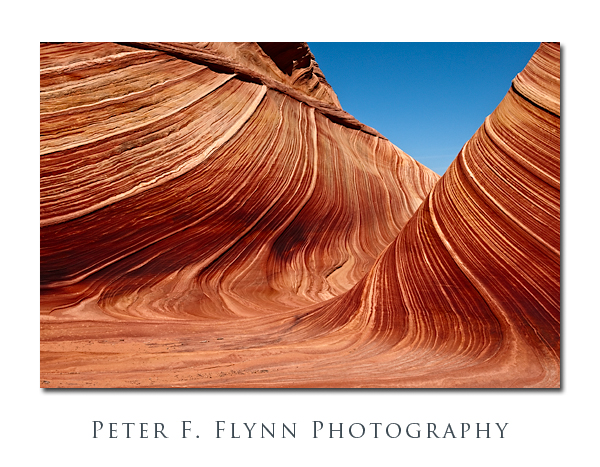
The Myth of the Golden Hour, Part IV

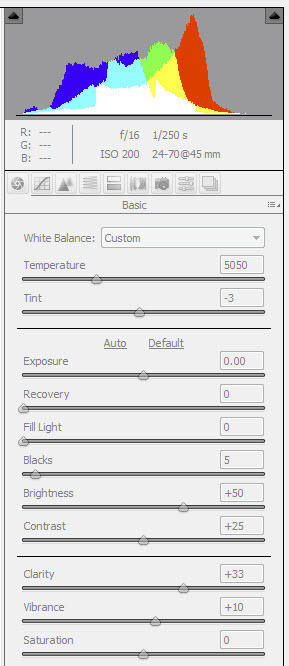
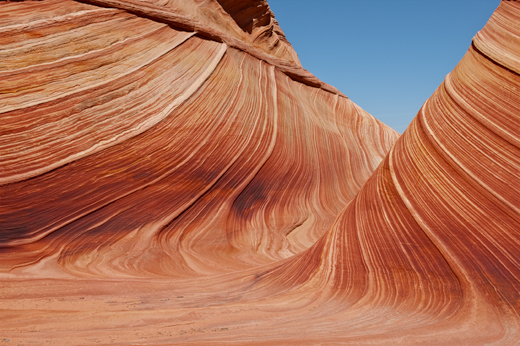
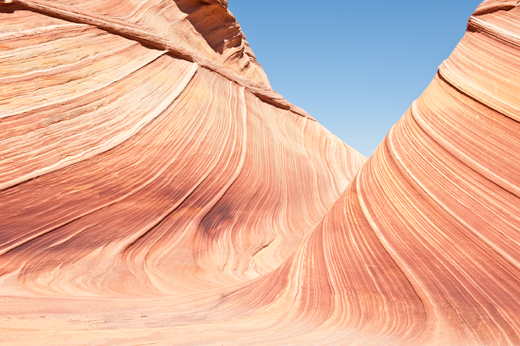
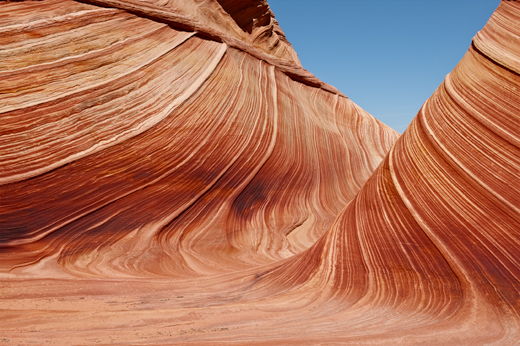
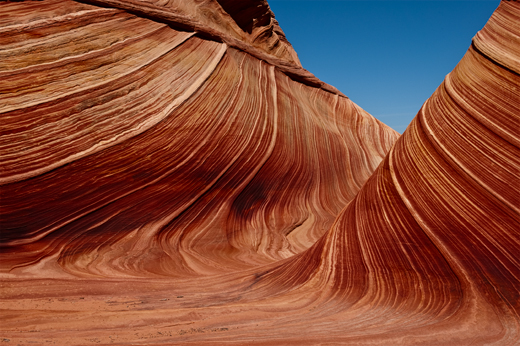
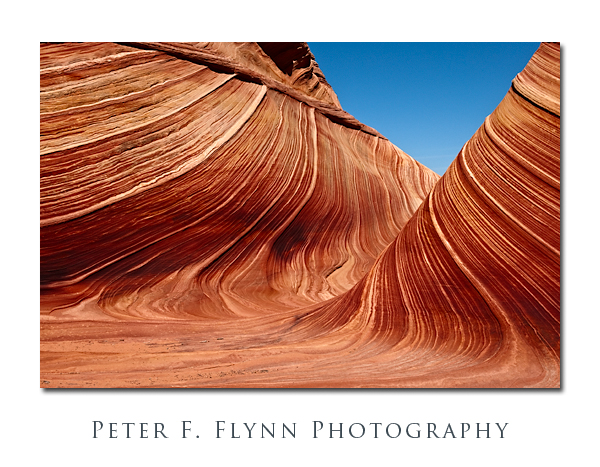
The image above was recorded in The Wave at about 12:20 MST on August 27, 2009, using the Nikon D700 and the AF-S NIKKOR 24-70mm f/2.8G ED lens at 45mm.  Exposure was f/16 at 1/250s, with an ISO of 200.  The Wave is found in the Coyote Buttes North section of Vermilion Cliffs National Monument in Utah/Arizona.

In a previous installment in this series I’ve indicated that the contribution to image contrast of the individual red, green, and blue channels are unequal.  In fact, the green channel contributes twice as much as the red channel, and the red channel contributes three times as much as the blue channel.  There are quite natural reasons for this curious channel weighting, which we will consider in a future entry.  For the current consideration we will focus on how we can modify the apparent weighting of the contributions of the individual R, G, and B channels.

The book says that an image recorded at midday is likely to be weak, e.g., lacking color saturation and contrast.  Admittedly, perhaps the composition is a bit ordinary, but there is nothing lacking in the image above in terms of image contrast and color saturation.  On the other hand, and as is shown below, that is not how this image started out.

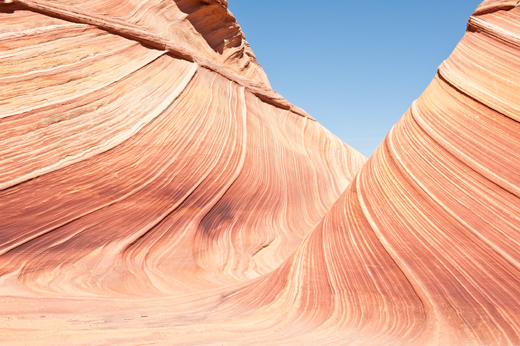
Well, this is obviously an overexposed image you might say.  Nope, check the histogram.

I bracketed this shot too, and this is the best compromise between overexposed and muddy.  The lack of contrast is a result of shooting the scene with the sun pretty much exactly overhead – what audacity!

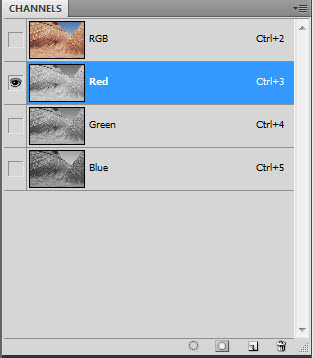
We appear to have quite a way to go to bring the source image to the final image, but it’s actually quite straightforward.  Begin by reviewing the red, green and blue channels of the source image.  First copy the Background layer, (cntl>j (<cmd>j on the Mac) to generate a new layer (Layer 1).  Then select the red, green, and blue channel panels in turn in the CHANNELS palette.

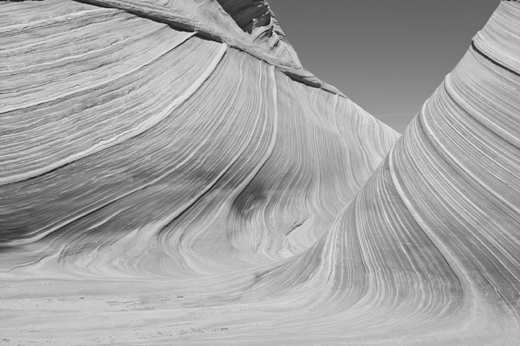
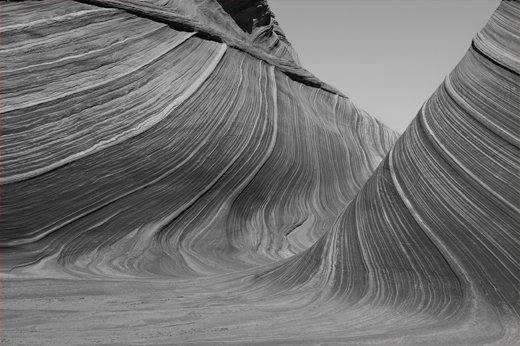
As you can clearly see below, the green channel possesses much better contrast than the red channel – this channel is in pretty good shape.

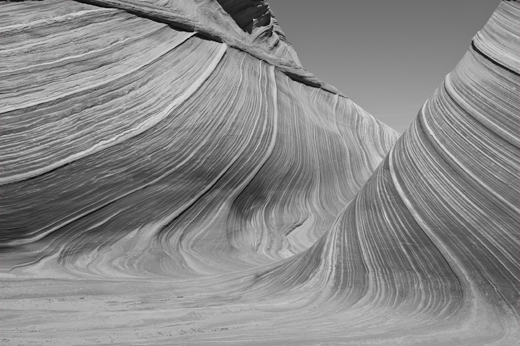
The blue channel (below) has much better contrast than the red channel.

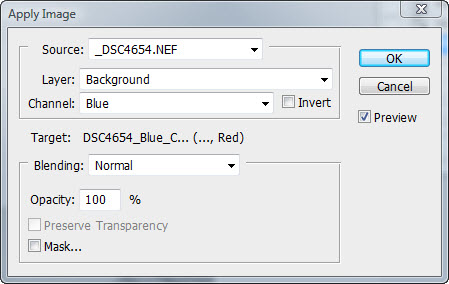
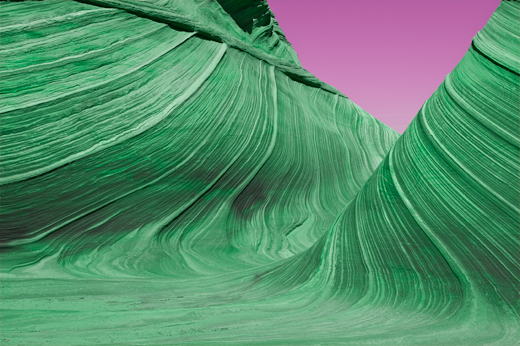
To enhance contrast in that weak red channel we simply replace the red channel (blend) with the blue channel.  To accomplish this replacement, we employ the Apply Image tool to execute the blend by first selecting the red channel, and then typing Image > Apply Image, and then specifying that the blue channel be added to the red channel in Normal blending mode at 100% opacity.  The result is shown below.

While you might be able to appreciate the contrast enhancement, the resulting influence on color dominates your impression.  We can restrict the influence of channel blending by changing the blending mode of the Background copy layer to Luminosity.  The result of the change in blending mode is shown below, with the original source image shown below that image for comparison.

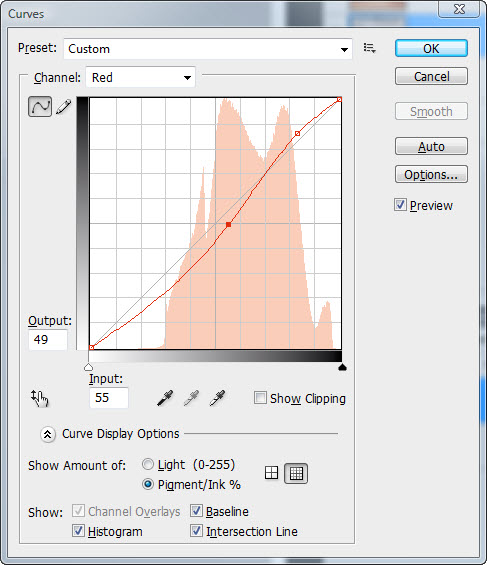
This is a significant improvement.  The contrast is then further enhanced by applying a curves adjustment to the red and green channels (you could also apply a curve to the blue channel, the influence on the overall image contrast would be small).

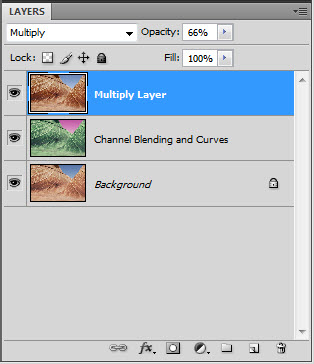
To finish processing of the image we apply the image to itself in Multiply blending mode by first flattening the image, and then copying the resulting layer and changing the blending mode to Multiply.

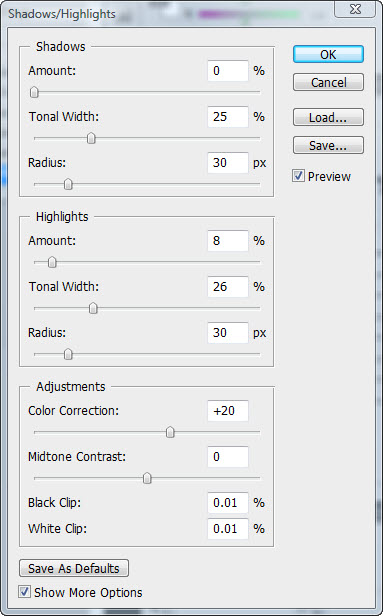
Finally, we apply Shadow/Highlight adjustment to open up the mid tone range a bit: select Image > Adjustments > Shadow/Highlights…

I hope that you’ve found this entry useful.  If so, please drop me a line and let me know what you’d like to see in future posts.  Cheers, P.

Copyright 2010 Peter F. Flynn. No usage permitted without prior written consent. All rights reserved.