 In a previous entry we considered the Brightness controls in Nik Silver Efex Pro 2. In this entry we consider the other major component of tone control, contrast adjustments. As with the Brightness controls, the contrast adjustment controls have undergone a significant redesign.
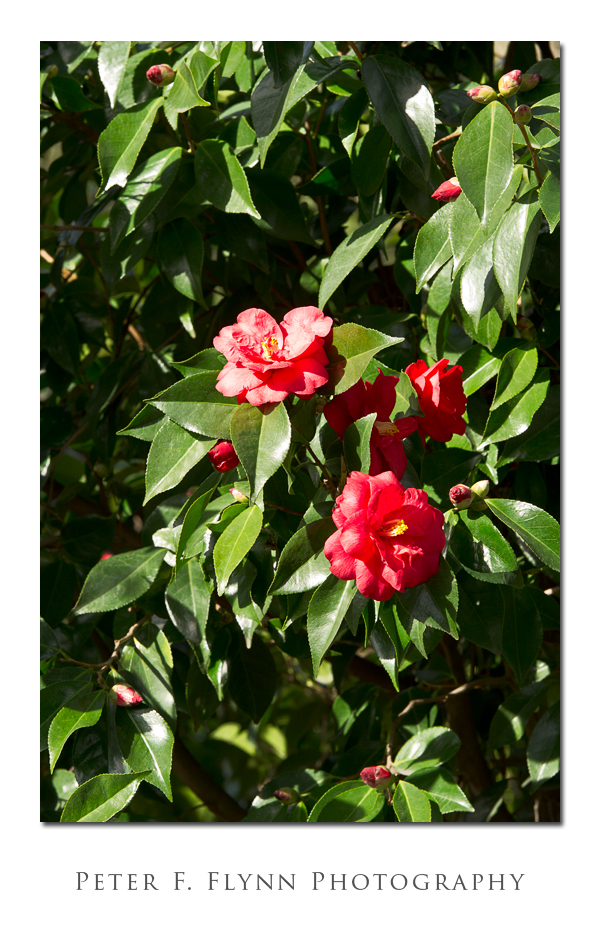
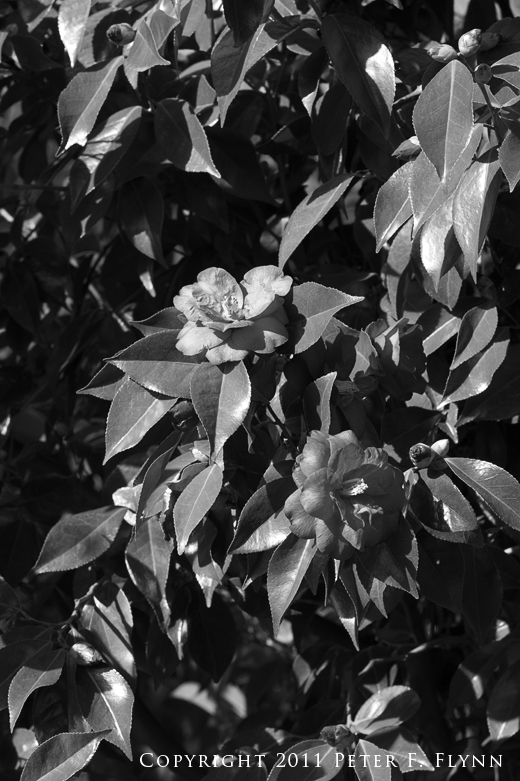
The source image for this discussion, shown above, was recorded at Cathedral Park in Portland, OR, at about noon on February 20, 2011, using the Nikon D3s and the AF-S 70-200mm f/2.8G ED VR lens at 165mm. Exposure was f/11 and 1/40s, ISO at 200.
Processing on the color version of the Camellia included white balance adjustment based on the WhiBal reference card (see the February 25 entry for a shot of the HP holding same), highlight recover in the RAW conversion (+13), and curves adjustments of the red and green channels followed by conversion of that layer to Luminosity blending mode. Capture sharpening, midtone contrast enhancement, and output sharpening (for web) were applied using PhotoKit Sharpener 2.0 (the new version of PhotoKit Sharpener is really very good). The version of the image that we will use for a workup in Silver Efex Pro 2 is a minimalist version of the image above, which leaves out the curves adjustment and the midtone contrast enhancement, but adds a Hue/Saturation adjustment to boost the color saturation (+25 on the Master control) prior to BW conversion.
The initial conversion into BW using Nik Silver Efex Pro 2, shown below, produces a very nice starting point – solid initial conversion is a strong point of Silver Efex Pro.
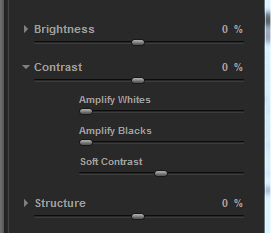
Contrast Tone Controls
In addition to global control of brightness, the Contrast control now has three parametric control elements: Amplify Whites, Amplify Blacks, and Soft Contrast. For global Contrast as well as for Soft Contrast, the operation range of the tone controls ranges from -100% to +100%, whereas for Amplify Whites/Blacks, the range is from 0% to 100%.
We first consider the effect of the global Contrast adjustment. I’ll show the versions with the global Contrast set at -40%, -20%, 0%, +20%, and +40%.
For the image below, global Contrast was set at -40%.
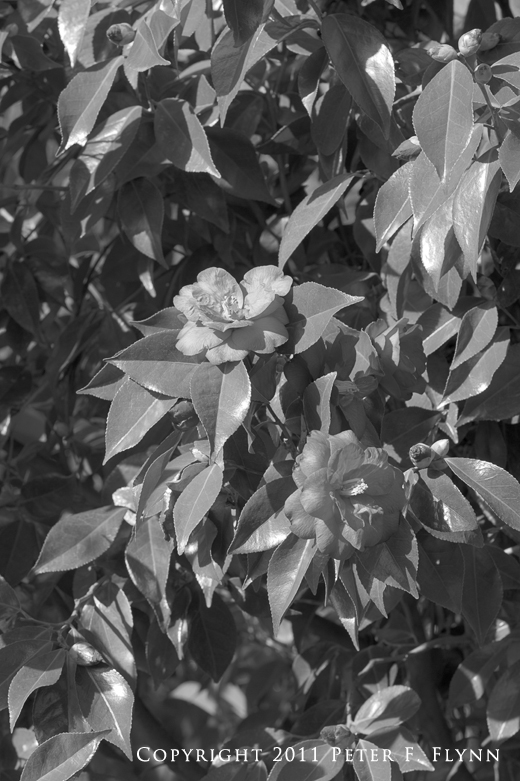
For the image below, global Contrast was set at -20%.
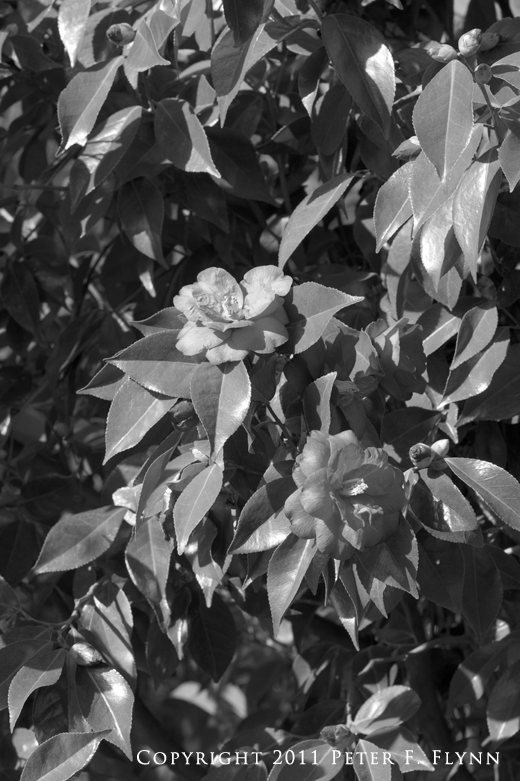
Reference Image (global Contrast set at 0%).
For the image below, global Contrast was set at +25%.

For the image below, global Contrast was set at +40%.
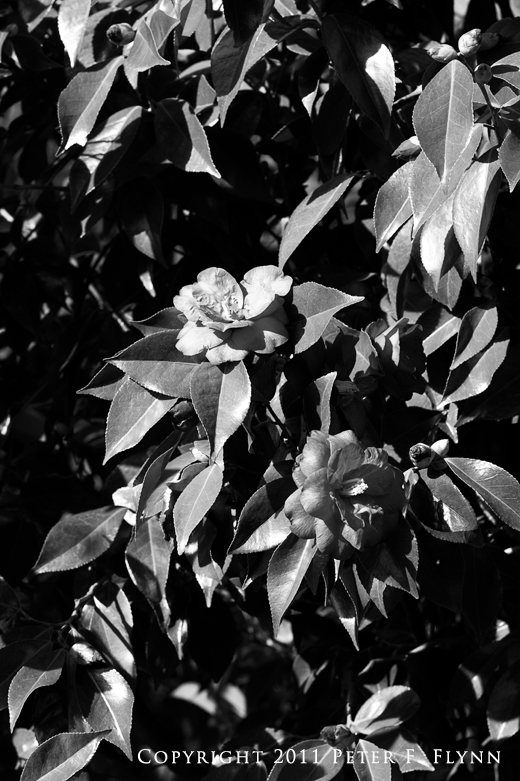
The global Contrast tone control thus functions as one would image, adjusting the overall contrast of the image.
Parametric Contrast Tone Controls
The parametric Contrast tone controls supports enhanced adjustments of image contrast, which as for the Brightness controls, should reduce or eliminate the need to make selective adjustments to image brightness. To demonstrate the parametric controls, I’ll again show the reference image, followed by variations in the Amplify Whites, Amplify Blacks, and Soft Contrast parametric controls.
Amplify Whites/Blacks Control
Reference Image: Global Contrast control at 0%, Amplify Whites/Blacks controls at 0%
Amplify Whites control set at +40%, Amplify Blacks control set at 0%
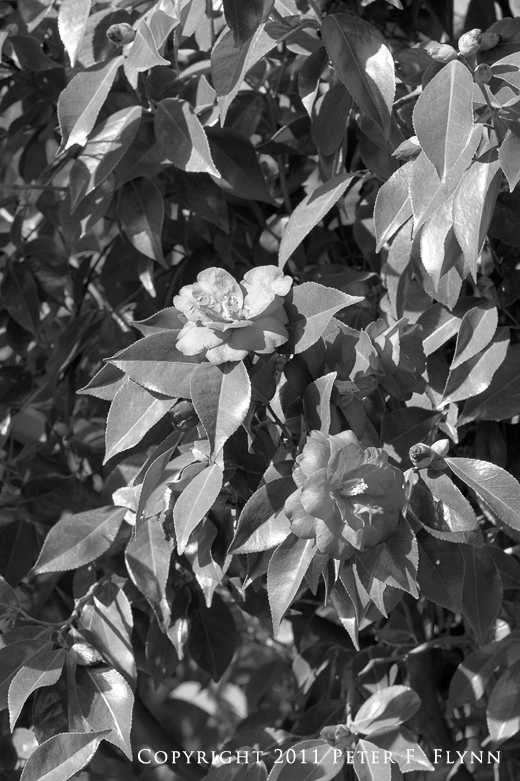
The influence of Amplify Whites is to increase the brightness in the darker tones while preventing the highlights from blowing out.
Amplify Blacks control set at +100%, Amplify Whites control set at 0%
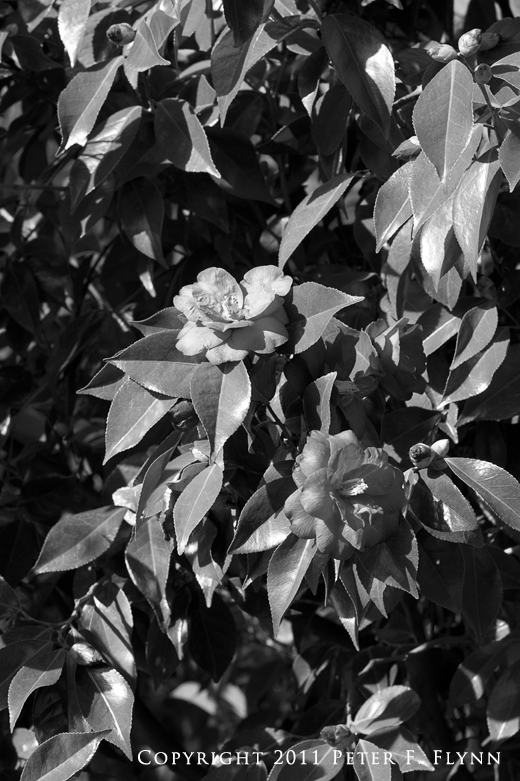
The effect of Amplify Blacks for the source image is extremely subtle – there is some darkening in the darkest tone, with no apparent change in the lighter tones.
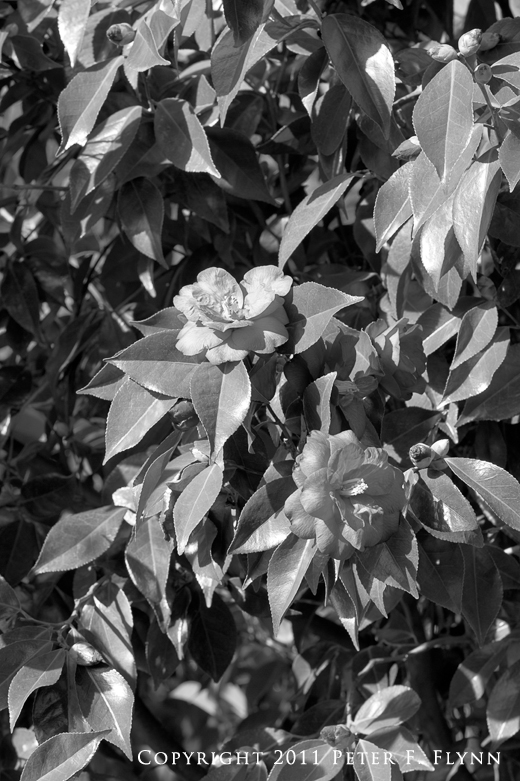
Amplify Whites at +40%%, Amplify Blacks at +100%
Soft Contrast Control
The official Nik description of Soft Contrast is, well frankly, a little soft:
The Soft Contrast slider’s goal is to provide a different approach to contrast, one that can be less harsh than the effect of traditional contrast. Moving this slider to the right introduces a moody contrast with soft transitions between areas. Moving this slider to the left reduces contrast while still maintaining edge contrasts.
The comment that the Soft Contrast control is less aggressive than the standard Contrast control seems to be accurate, as does the claim that adjusting the slider to the right reduces contrast while maintain contrast nears edges (a pretty subtle effect, but interesting). The notion of ‘moody contrast’ is a not a very useful phrase though – I’ll try to generate a more quantitative description of the effect.
Soft Contrast control set at -40%
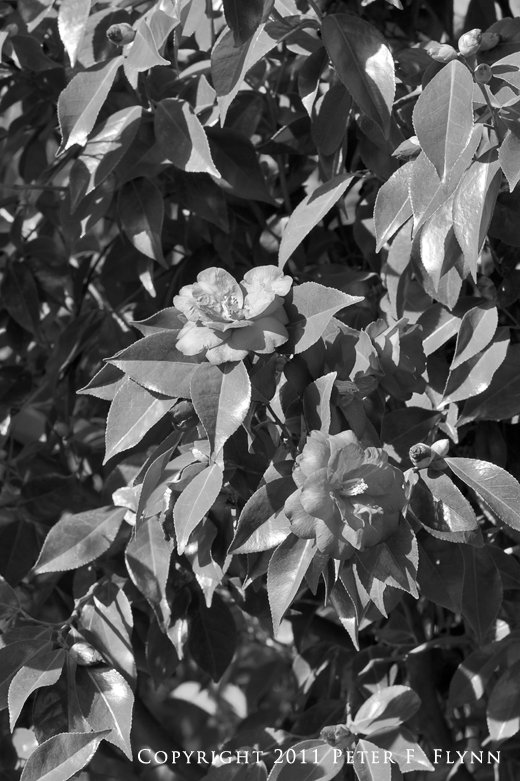
Reference Image: Global Contrast control at 0%, Soft Contrast control at 0%
Soft Contrast control set at +40%
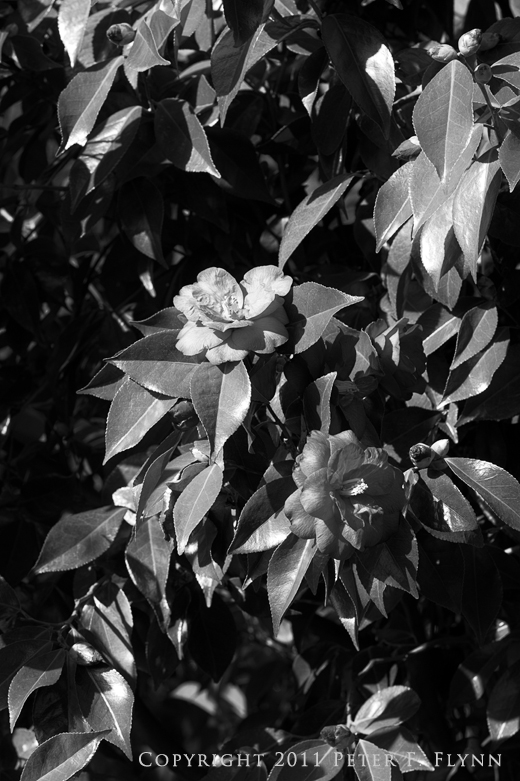
In the next entry, I’ll review the Structure controls in detail.
Copyright 2011 Peter F. Flynn. No usage permitted without prior written consent. All rights reserved.
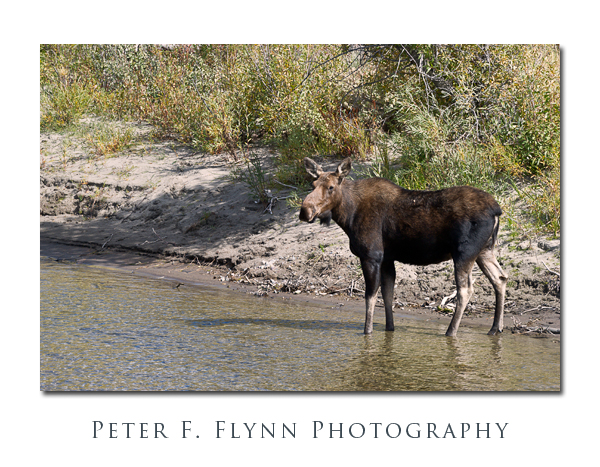
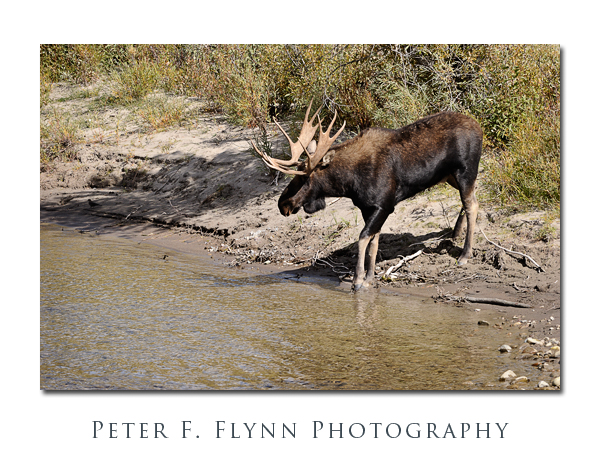
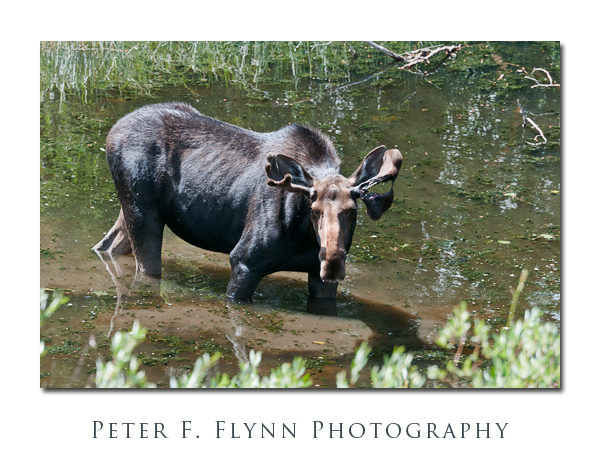 I’ve been reviewing images recorded over the past year, and adding keyword and captions using Photo Mechanic (stay tuned for a review). In the process of reviewing images I noticed that without a single exception, in dozens of encounters with Moose, I always find them either in or very near water.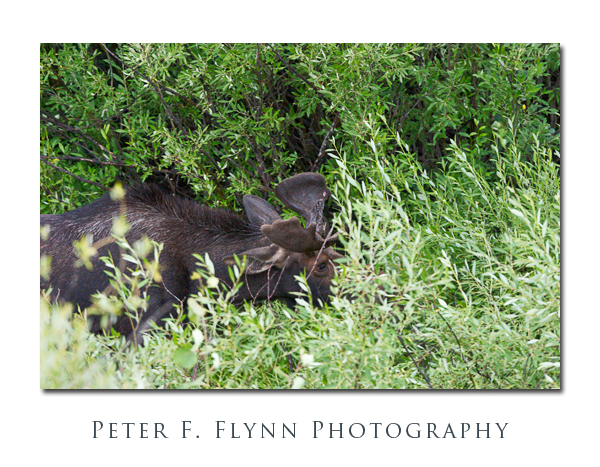
 Copyright 2011 Peter F. Flynn. No usage permitted without prior written consent. All rights reserved.